email link | internal & external links | anchor link
Email Link
- emailHighlight the email address temailo be linked (it's best to type the entire email address rather than use a person's name).
- Navigate to the Insert tab in the ribbon toolbar and click on "Hyperlink".

- In the "Type" field, select "mailto".

- In the "URL" field, type the appropriate email address immediately after "mailto:" (without a space after the colon).
- In the "Title" field, add the email address.
- Click "OK" to create the link.
Pro Tip: Remember to save your changes by clicking outside of the component frame.
Internal & External Links
Video: to come (2 min.)
- Highlight the content you want to link.
- Select the "Insert" tab in the ribbon toolbar and click on the Hyperlink icon.
- In the popup window,
- URL: Paste the external URL. (Make sure to remove any duplicated "http://" or "https://".)
- Title: Write the name of the hyperlink or a word or phrase that describes the link. (This will appear when you hover over the link.)
- Target:
- For Internal Link - Choose "Default."
- For External Link - Choose "New Window." (All links outside of uml.edu should open in a new bowser window.)
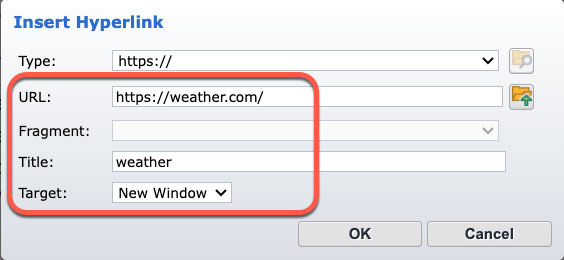
- To test the link, click on the folder icon (Open) on the right of the URL field.
- Click "OK" to create the link.
Pro Tip: Remember to save your changes by clicking outside of the component frame.
Anchor Link
VIDEO: Create an anchor link (X:XX min.) <TO COME>
An anchor is a link to a named position in the same component.
- To insert an anchor, move the cursor to the desired position in the content where the hyperlink should point, and click there.
- To create quick links to different sections of the content, make the section titles anchors, and duplicate them at the top of the content. Then link the top titles with the corresponding sections.
- For example, to create an anchor named "libraryweek" for the section titled "Celebrating national library week":

- a. Move the cursor to the beginning of "Celebrating national library week" and click once.
- b. Click the Insert tab in the ribbon toolbar and select Anchor.

- c. Name the anchor (without spaces) as "libraryweek" and click OK.

- To link the top duplicated title with the corresponding anchor:
- Highlight the title, "Celebrating national library week."

- Select Hyperlink.
- Under Type, select Anchor and under Anchor Name, choose the corresponding anchor "libraryweek."
- Click OK to save the changes.

- When you are creating your next anchor link, you can find the other words you selected in the drop down in the anchor field.
- To save the changes, click outside of the component frame
Pro Tip: How to link from one component (Component A) to an anchor in another component (Component B) on the same page.
- Make an anchor in Component B and name it (for example, "test"), save and close.
- Open the Component A and highlight the the part of the content to link to the anchor.
- Click on Hyperlink button and select Other (under Type) and type "#name of the anchor" (in this case "#test"), then save and close.